12twenty provides you with a platform that allows you to include your own branding through a custom site name, acronym, colors, and images.
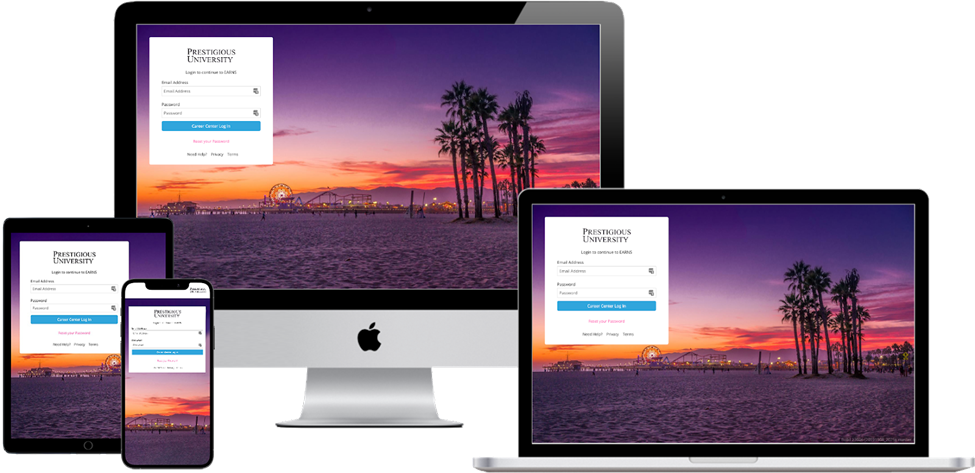
- Site Name and Acronym
- Site Colors
- Default Branding
- Site Logo & University Logo
- Site Background Image
- Custom Branding
- Changing the Login Page Background Image
For any guidance or suggestions, please reach out to your Implementation Manager or contact the 12twenty Support Team by creating a new request.
Site Name and Acronym
Your 12twenty site's name and acronym can be configured by the 12twenty team. To do so, please submit a request through the 12twenty Academy, email Support@12twenty.com, or contact your Implementation Manager.
Site Colors
Your 12twenty site's colors are customizable and can be configured by the 12twenty team. To do so, please submit a request through the 12twenty Academy, email Support@12twenty.com, or contact your Implementation Manager.
While you can use any colors on your site, we recommend ensuring that the colors you select have a high contrast ratio that adheres to or exceeds WCAG recommendations. You can check your chosen colors contrast against a white background (#FFFFFF) by using a WCAG Checker like WebAIM.
Default Branding
Your platform's default branding will be displayed to all admin users, employer users, and student & alumni users for which a custom branding configuration does not exist.
To manage your default branding:
- Navigate to Site Settings > General > Site Branding
- Use the more actions icon to select Edit.
- Replace the School Logo, Site Logo, and/or the Background Image as needed and save your changes.
- School Logo: This logo is displayed on the footer of system generated email notifications, as well as the cover page of any downloaded Application Packets.
- Site Logo: This logo is displayed on the user login page and the left hand navigational panel.
- Background Image: This image is displayed on the login page and the user homepage/dashboard.
Site Logo & University Logo
| Site Logo | Sign-In Page | Left-Hand Navigation Panel |
|
Used for the image on the sign-in modal and the left-hand navigation panel |
| School Logo | Applicant Packet Export | Resume Book Download |
| The school logo is used for various items throughout your site including Resume Books and Application Packets |
Logos can be uploaded via Site Management > Site Settings > "General" Section > "Site Branding"
Image Requirements
- Image Size: 180x45
- File Types Accepted: gif, png
- Max File Size: 25kb
Note - Please ensure that you are using an image with a transparent background
Site Background Image
The login screen window is responsive; therefore, the page will keep the center of the image in the center of the screen but will expand outward depending on the user's screen size. Therefore, any element of the image that you would like to keep in view should be in the center of the image, or as close to it as possible.
"Student Groups" can now dictate what images and branding your Students or Alumni will see. Please review the following resource to learn more: Site Branding
Image Requirements
- Image Format: JPG
- Max File Size: 800kb
- Max Image Dimensions: 1920x1080
- Minimum Image Dimensions: 1280x800
Custom Branding
Custom branding allows admins to differentiate a school logo, site logo, and background image for different student populations. When a custom branding configuration is applicable to a student or alumni user, they will see the school logo and site logo across the platform and in email notifications after they have logged in, as well as the custom background image on their homepage.
For undergraduate schools, custom branding can be set up for Colleges/Schools. If a user is assigned to multiple colleges/schools, their primary college/school will be used to determine the custom branding that is displayed.
For Business and Law Schools, custom branding can be set up for Student Groups. If a user is assigned to multiple student groups for which custom branding exists, the default branding will be displayed.
To create a new custom branding configuration:
- Select the +New button in the top right hand corner on the Site Branding tab of the General / General Configuration site setting page.
- Select the College/School(s) or Student Group(s) this custom branding will apply for.
- Upload a School Logo, a Site Logo, and a Background Image.
- Select Save.
- Repeat for each student population you would like to set up a custom branding configuration for.
To Edit or Delete a custom branding configuration:
-
- Use the more actions icon to select Edit or Delete. If editing, replace the School Logo, Site Logo, and/or the Background Image and be sure to save your changes.
Changing the Login Page Background Image
If you would like to change your platform's login background image, please send the image to the 12Twenty Support team (support@12twenty.com). The image must adhere to the following specifications:
- Image Format: JPG
- Max File Size: 800kb
- Max Image Dimensions: 1920x1080
- Minimum Image Dimensions: 1280x800
Please note that the login screen window is responsive, so the page will keep the center of the image in the center of the screen. Therefore, any element of the image that you would like to keep in view should be in the center of the image, or as close to it as possible.
Here is a good example of a background image. The students are walking in the center of the screen (both horizontally and vertically) and the image itself is very symmetrical:
Here is a bad example of a background image. The bicyclist is in the center of the screen, but her head is at the top of the screen, so it could get cropped off. It would be better if the students head were lower, closer to the center of the image.